Revolutionizing Data Analytics with Smart Query: Natural Language Dashboards
In today’s data-driven business landscape, speed and simplicity in data analysis can define an organization's competitive edge. Yet, navigating complex dashboards, writing SQL queries, or drilling down through endless filters often makes data exploration overwhelming for non-technical users. Recognizing this gap, Dashboard Builder introduces a game-changing feature: Smart Query. By harnessing the power of Artificial Intelligence (AI) and Natural Language Processing (NLP)—through cutting-edge models like ChatGPT, DeepSeek, and Gemini. Smart Query allows users to interact with their data using simple, everyday language - bringing the concept of natural language dashboards into reality.. Whether you're asking to "see last year’s data" or "analyze top-performing regions," the system intelligently interprets the intent, restructures it into actionable queries, and dynamically regenerates visual graphs on the fly. This innovation bridges the gap between human conversation and machine-level data analysis—empowering every team member to make informed decisions without writing a single line of code.
Introduction
In the ever-evolving world of data analytics, simplicity and intelligence are becoming the new standards. Dashboard Builder is leading this transformation with its latest feature—Smart Query—a breakthrough that enables users to analyze data using Natural Language Processing (NLP). No more struggling with complex SQL syntax or navigating multiple filters; just type what you need in plain English, and the system takes care of the rest.
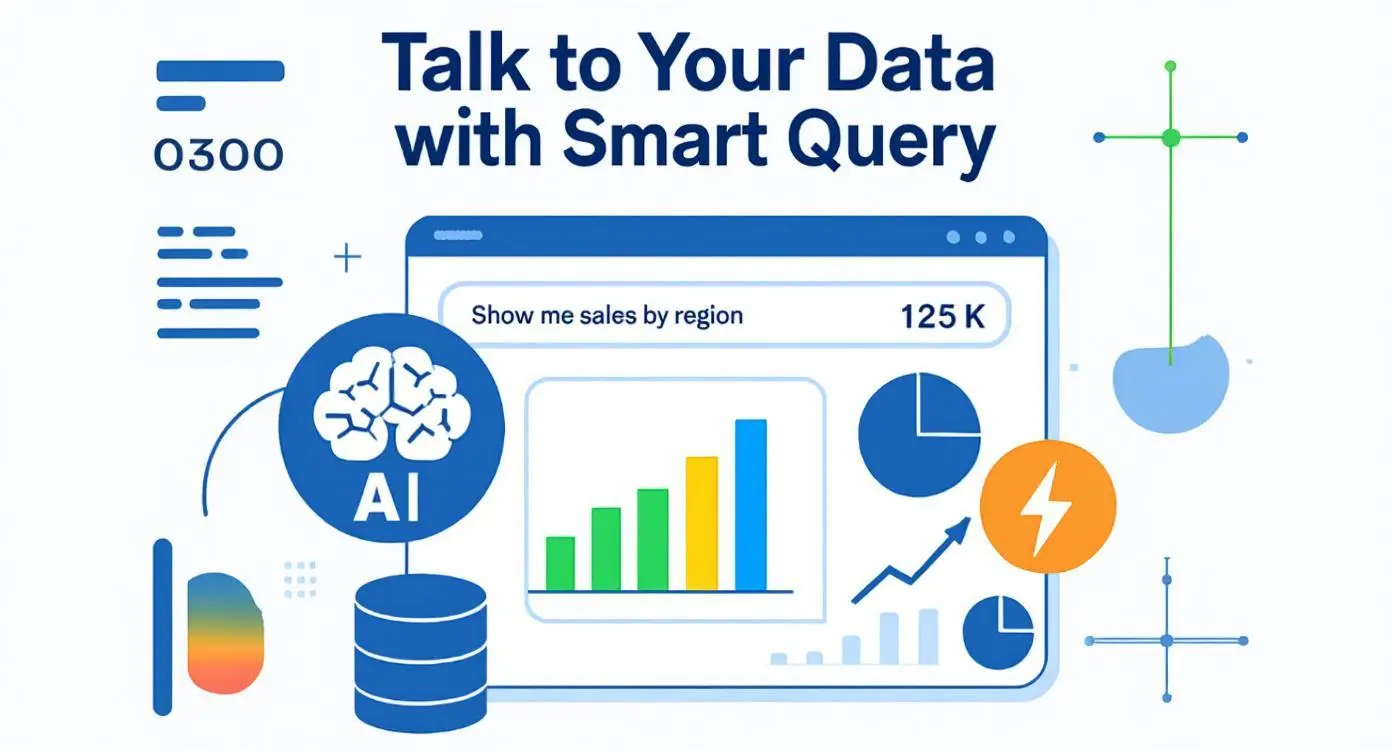
Smart Query enables a natural language dashboard experience, allowing users to ask questions and instantly generate visual analytics.
What is Smart Query?
Smart Query is a cutting-edge feature in Dashboard Builder that empowers users to interact with their data naturally. Instead of traditional filter-based dashboards or manual SQL scripts, users can now ask questions like:
"I want to see data from last year."
"Show me top-performing sales regions."
"What were the monthly expenses in Q2?"
This makes Smart Query a perfect example of natural language dashboards, where users move away from rigid filters and interact conversationally with data.
How It Works: AI at the Core
Smart Query is powered by advanced AI language models, including ChatGPT, DeepSeek, and Gemini, which are integrated into the Dashboard Builder platform. Here's how it works:
- Natural Language Query: The user types a question or command in natural language.
- NLP Interpretation: The input is processed by NLP agents, which translate it into a structured command.
- Query Conversion (MML & SQL): The system converts the interpreted query into an internal markup (MML) and then into a SQL query.
- Graph Generation: Based on the SQL output, the dashboard regenerates visualizations—bar charts, pie charts, KPIs, tables—reflecting the exact data requested.
This entire process takes place in seconds, offering real-time, intelligent data interaction.
Why Smart Query Matters
- No Technical Skills Required: Users don’t need to know SQL or data schemas—just ask a question.
- Faster Decision-Making: Instant results help teams make data-driven decisions quickly.
- Seamless Integration: Smart Query works smoothly with existing data sources and visual layouts.
- AI-Powered Accuracy: Leverages ChatGPT, DeepSeek, and Gemini to understand context, intent, and complex queries.
Use Cases of Smart Query in Business Intelligence
- Marketing Teams: Analyze campaign ROI by simply asking, "Show me ROI by campaign."
- Sales Managers: View performance with queries like "Top 5 sales reps this quarter."
- Finance Departments: Check expenditures with "Display expenses by category for Q1."
- Executives: Get high-level KPIs like "What’s the YoY growth?"
Future of Smart Analytics
The integration of Natural Language Processing in dashboards - often referred to as natural language dashboards - marks a major shift in how businesses interact with data. It democratizes analytics—making it accessible to everyone, regardless of technical expertise. Smart Query is not just a feature; it’s a new way of thinking about business intelligence.
With Smart Query, Dashboard Builder is redefining the future of interactive data analytics. By combining the power of NLP, AI, and real-time visualization, organizations can unlock faster insights and empower every team member to explore data freely and intelligently.
Whether you're a data analyst, business executive, or a startup founder, Smart Query transforms your data experience from complex to conversational.
How to Use the Smart Query Feature in Dashboard Builder (v7.4+)
APPLIES TO: On-premises Online Desktop
The Smart Query feature in Dashboard Builder enables users to interact with data using natural language. This AI-powered functionality leverages APIs from Gemini, ChatGPT, or DeepSeek to generate dynamic graphs based on plain-language queries such as “Show me sales from last year.”

Requirements
The Dashboard Builder can be installed any platforms like Windows, Linux, Mac and Ubuntu or any other platforms support Apache.
- Dashboard Builder 7.4 or higher version
- PHP Version 7.2 or later
- Apache 2 or later
- Windows 7 or later /Linux 3 or later
- Firefox 52, Chrome 57, IE 8
Installation
- Download from https://dashboardbuilder.net/download-free-dashboard
- Place the files in a directory on the web server. e.g. …/www/dashboar/dbuilder/
This guide walks you through how to enable Smart Query using the Gemini API and how to embed it into your charts.
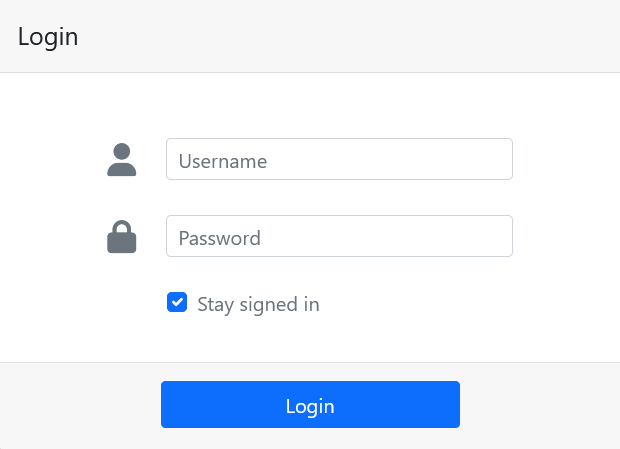
Step 1: Log In to Dashboard Builder
- Open your Dashboard Builder application (v7.4 or above).
- Log in using your valid credentials.
Step 2: Get Your Gemini API Key
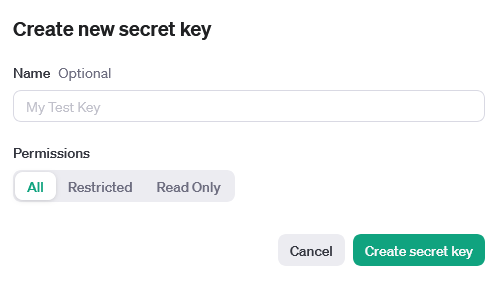
- Go to: https://aistudio.google.com/app/apikey
- Sign in with your Google account.
- Click "Create API Key" (or copy an existing one if available).
- Safely copy the API key to your clipboard.
Step 3: Enable AI Integration in Dashboard Builder
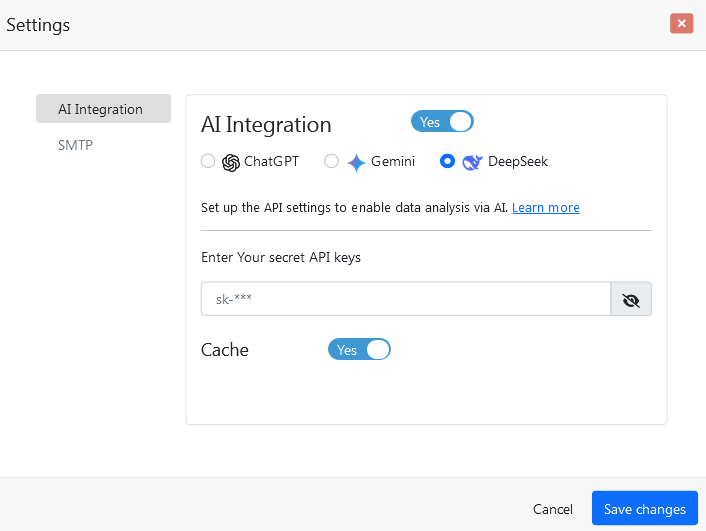
- Inside Dashboard Builder, go to the Settings menu.
- Navigate to AI Integration.
- Enable the toggle: Enable AI Integration.
- Among the AI providers listed (ChatGPT, Gemini, DeepSeek), click the Gemini button.
- Paste your Gemini API key into the field provided.
- Click Save Changes.
Step 4: Create or Edit a Chart
- Connect to your database as you normally would.
- Navigate to your dashboard and click Edit.
- Double-click the chart header bar to open the Chart Settings screen.
- Create your chart using the standard options (e.g., select dataset, chart type, grouping, etc.).
Step 5: Enable Smart Query on the Chart
- In the Chart Settings screen, locate the Properties section.
- Find the Smart Query option.
- Set it to Yes.
- Click Save to apply changes.

Step 6: Use Smart Query
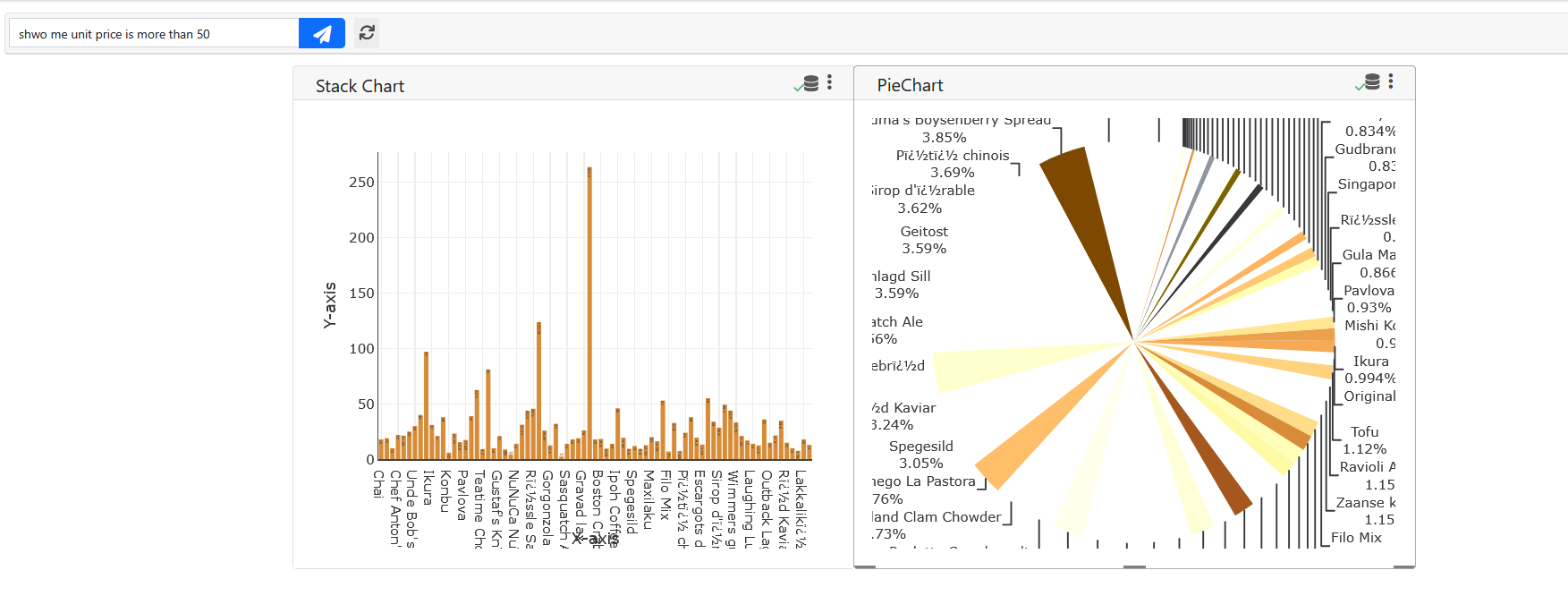
Once enabled, a Smart Query input box will appear on the top of your chart bar.
- Enter a natural language query, such as:
- “Show me sales data for 2023.”
- “What were the top 5 products last quarter?”
- Click the Submit button.
- A new chart will be dynamically generated based on your query.

Step 7: Refresh or Revert Your Query
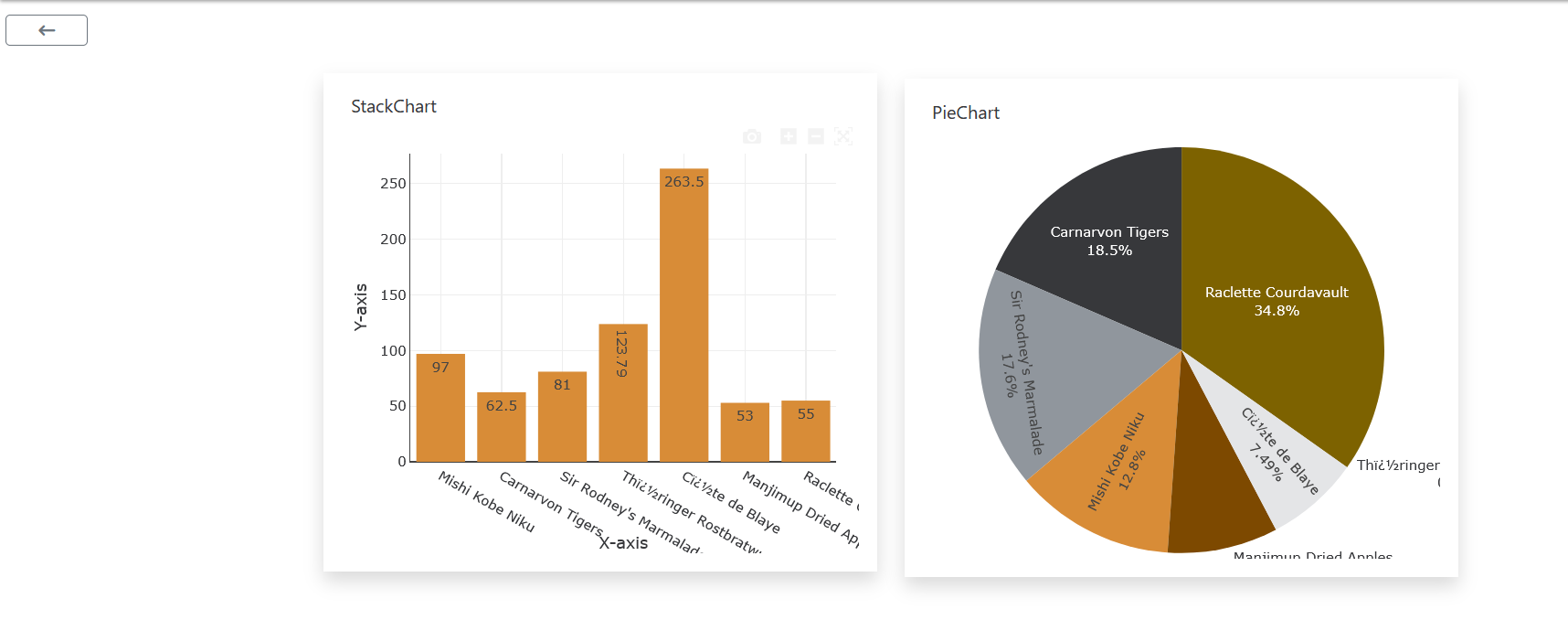
- To regenerate a chart, click the Refresh button.
- To go back to the original view, click the Back button.
Notes
- This feature requires a stable internet connection for API communication.
- Smart Query is only available in Dashboard Builder v7.4 and above.
- You can switch between AI providers anytime by updating the settings.
Meet the Expert Behind Smart Query
George Lewis – Director of AI & Business Intelligence Strategy, Dashboard Builder
Smart Query is designed by George Lewis (Director of AI & Business Intelligence Strategy at the Dashboard Builder), with 10+ years in BI and data visualization. He’s led enterprise dashboard rollouts in healthcare and finance.
With over a decade of experience in artificial intelligence and data science, George Lewis has been the driving force behind the innovation of Smart Query. As the Director of AI & Business Intelligence Strategy at Dashboard Builder, George has dedicated his career to making data more intelligent, accessible, and actionable.
His work blends cutting-edge machine learning, natural language processing (NLP), and advanced data engineering to create a seamless analytics experience for users across the globe. Under his leadership, Smart Query evolved into a tool that empowers users to ask complex data questions in natural language—and receive instant, visual answers.
George’s mission is clear: to democratize business intelligence by removing technical barriers and enabling smarter decision-making for everyone—from executives to analysts. His vision continues to shape Dashboard Builder into a globally trusted platform used by businesses to uncover insights effortlessly.
"I take pride in leading innovations that make business intelligence more accessible, intelligent, and impactful.” — George Lewis
Case Study: Accelerating BI with Smart Query
At Diginix Technologies, AI & Data Scientist Jason Carter was spending hours each week writing complex SQL queries to extract insights for strategic reporting. With the adoption of Smart Query, his team transitioned to a natural language interface that lets them generate interactive dashboards instantly—simply by typing questions in plain English. The result? A 60% reduction in reporting time, improved decision-making speed, and increased data accessibility across non-technical departments. Smart Query not only streamlined their analytics workflow but also empowered broader teams to engage with data independently.

"As an AI & Data Scientist at Diginix Technologies, I rely on Smart Query to simplify complex data exploration. It lets me generate meaningful visual insights instantly—without writing a single line of code. It’s truly changed how we handle business intelligence."
Jason Carter
AI & Data Scientist, Diginix Technologies
Frequently Asked Questions
Conclusion
The Smart Query feature in Dashboard Builder represents a transformative shift in how users interact with data. By integrating advanced AI technologies like Gemini, ChatGPT, and DeepSeek, the platform empowers users to go beyond traditional filters and technical query languages. Now, anyone—regardless of their technical background - can simply type a question in natural language and instantly receive relevant, visual insights through natural language dashboards. This functionality not only streamlines decision-making but also democratizes access to data across your organization.
From setup to execution, enabling Smart Query is a straightforward process that brings powerful AI-driven analytics to your fingertips. Whether you're a business analyst, executive, or data enthusiast, this feature enhances productivity, promotes agility, and ensures more intuitive access to critical information. If you're using version 7.4 or higher of Dashboard Builder, it's time to turn on Smart Query and experience the future of interactive dashboards.
As Featured In
Smart Query was recently featured on Medium:
 Medium: I Typed “Show Me Sales by Region” and My Dashboard Did the Rest